
1. Overview
What is Grid Assistant?
Grid Assistant is a graphical workbench for handling CFD (Computational Fluid Dynamics) meshes. "Any format in, CGNS out." — its purpose is to open mesh files in a variety of formats, inspect them, transform/duplicate them, and export them to the neutral CGNS format.
It does not generate meshes. Grid Assistant is a tool for working with meshes that already exist — it is not a mesher that creates new ones.
Use Cases
- Conversion to CGNS: Turn the output of a mesh-generation tool (SU2, GMSH, Nastran, Abaqus, AFLR UGRID, or another CGNS) into a clean CGNS file a solver can read directly — BC names, CGNS BC types and zone interfaces included, in the standard CGNS structure
- Mesh check and repair: Find and fix open faces, coincident nodes, degenerate or inverted cells and mismatched interfaces before the mesh goes to the solver
- Boundary condition cleanup: Merge BC markers that were scattered across many entries into one, by name, pattern, or type
- Periodic geometry duplication: Duplicate a turbomachinery single-passage mesh N times around the circumference to build a full annulus, or weld a half model into a full one about a symmetry plane
- Quality checks: Compute standard mesh quality metrics (Aspect Ratio, Skewness, Scaled Jacobian, etc.) to verify mesh condition before solving
- Geometry inspection: Cut a slice through an arbitrary plane to see the interior visually
- Coordinate transforms: Align the mesh's coordinate system with rotation/translation/scale/mirror/an arbitrary 4×4 matrix
Key Features
- Many input formats → CGNS output (reads CGNS, SU2, GMSH, Nastran, Abaqus and AFLR UGRID; writes CGNS HDF5/ADF)
- Transform tools (Rotate, Translate, Scale, Mirror, Matrix, Periodic Copy, Turbo Rotation)
- Boundary condition merging (multi-select by name pattern or type)
- File merging (copy zones of one open file into another) and zone interface creation/deletion
- Mesh check and repair (Check Repair — open faces, coincident nodes, degenerate and inverted cells, interface mismatches)
- Element order elevation (linear → quadratic)
- Mesh quality inspection (5 metrics, histograms)
- Slice tool (Smooth/Crinkle, live preview)
- Ruler and screen capture
- Large-mesh support (handles CGNS files with tens of millions of cells)
2. System Requirements and Installation
System Requirements
- OS: Windows 10/11 (64-bit)
- Display: 1280×800 or higher recommended
- Memory: Scales with mesh size (8 GB or more recommended for multi-million-cell meshes)
Prerequisites
- Visual C++ Redistributable 2022 (x64) — if this is not installed, launching the app fails with "VCRUNTIME140.dll was not found."
- Download: https://aka.ms/vs/17/release/vc_redist.x64.exe
- Already included if you installed via the installer — no separate step needed.
Installation
- Download the installer for the latest version,
GridAssistant_v, from GitHub Releases._Setup.exe - Run the downloaded installer.
- Choose an install path in the wizard (default:
C:\Program Files\GridAssistant). - You may optionally create a desktop shortcut.
GridAssistant.exelaunches once installation finishes.
Note: On first launch, Windows may show a SmartScreen warning such as "Windows protected your PC." Click More info → Run anyway to proceed. This is common for newly distributed applications and stops appearing as the program is used more widely.
Installing a new version over an existing one upgrades it in place at the same location (settings and the docking layout are preserved).
3. Layout
Grid Assistant's window is made up of the ribbon, the 3D viewport, and dockable panels.
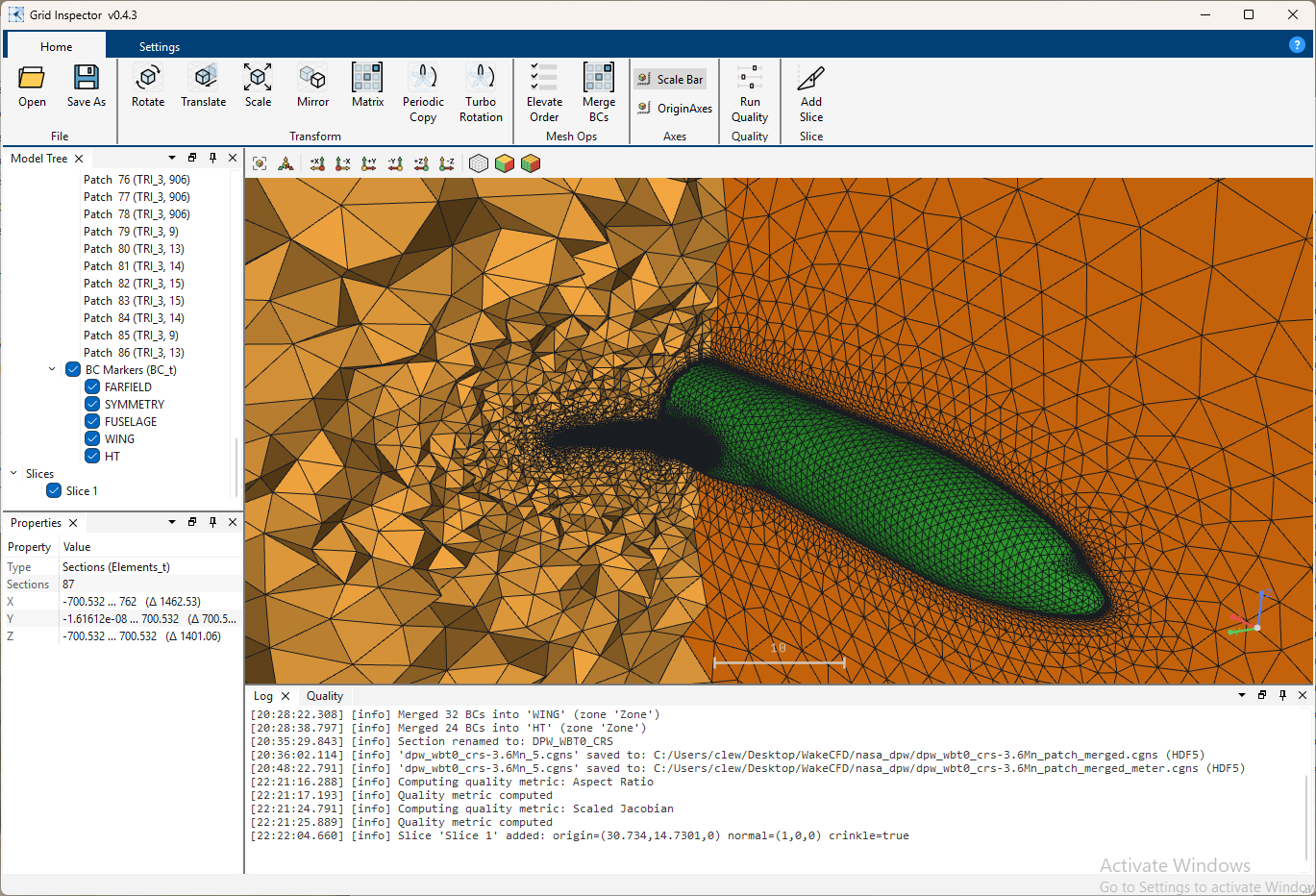
Ribbon
- Home tab: File / Transform and Copy / Mesh Ops / Tools groups — all the working tools live here. Tools holds Quality, Slice, Ruler, and Capture.
- Settings tab: panel visibility, rendering options, and (telemetry builds only) privacy settings.
3D Viewport and Toolbar
The 3D view in the center is a fixed panel that is always shown, with an icon toolbar above it:
- View presets: Fit view, Isometric, Zoom area, View from +X/-X/+Y/-Y/+Z/-Z (the camera stands on that side, so View from +X has +X pointing out of the screen), Rotate view left/right (90° about the screen centre), Parallel projection (on/off; off is perspective)
- Render mode: Wireframe, Surface, Surface with edges
- Display: Scale bar, Origin axes, Rotation centre (on by default: while you rotate, a small sphere of X/Y/Z rings marks the point the view turns about; wheel zooms and pans move it, F puts it back on the model centre)
Dockable Panels
The following panels can be freely moved, undocked, and closed:
| Panel | Contents |
|---|---|
| Model Tree | The File → Zone → Section/BC hierarchy of loaded meshes, with visibility checkboxes |
| Properties | Detailed properties (name/type/count/range, etc.) of the item selected in the tree |
| Log | Runtime log |
Next to the central 3D view are the fixed Render and Quality tabs, which switch views without tearing down the GL context.
A closed panel can be reopened from the checkboxes in Settings tab → Panels.
Saving the Layout
The panel arrangement (docking layout) is saved automatically on exit and restored on the next launch. If the layout gets tangled up, deleting the following file resets it to the default (there is no separate "reset" button in the app):
%LOCALAPPDATA%\CLEW\GridAssistant\layout.xmlThe settings.ini in the same folder stores settings such as the last open/save folder.
4. Opening and Saving Files
Supported Input Formats
| Format | Extension |
|---|---|
| CGNS | .cgns |
| SU2 | .su2 |
| GMSH | .msh |
| Nastran | .bdf, .nas, .fem |
| Abaqus | .inp |
| AFLR UGRID | .ugrid (.b8.ugrid, .lb8.ugrid, ...) |
A note on the
.mshextension: Grid Assistant reads.mshfiles as GMSH. Fluent.mshis not supported. Make sure the file was exported in GMSH format.
Supported Output Formats (Save As)
| Format | Extension | Note |
|---|---|---|
| CGNS (HDF5) | .cgns | Choose "CGNS HDF5" in the save dialog |
| CGNS (ADF) | .cgns | Choose "CGNS ADF" in the save dialog |
Note: SU2, GMSH, Nastran, Abaqus and AFLR UGRID are supported for input only. Use CGNS to save zone interfaces.
Opening Files
- Click Home ▸ File ▸ Open (
Ctrl+O) and select a file — selecting multiple files at once adds each one as a separate entry in the tree. - You can also drag and drop files from Explorer onto the Model Tree panel.
- Passing mesh file paths as command-line arguments loads them automatically at startup (no limit on the number, and formats can be mixed):cmd
GridAssistant.exe reactor.cgns wing.su2
When reading a file, clearly corrupted data — an empty zone, zero nodes, a missing section — is filtered out at load time and reported as an error message.
Saving Files
Home ▸ File ▸ Save As (Ctrl+Shift+S) — saves the file selected in the tree (or the most recently loaded file, if none is selected) in the format you choose.
5. Basic Workflow
- Load a mesh file with File ▸ Open.
- Check the Zone/Section/BC structure in the Model Tree, and uncheck anything you don't need to hide it in the viewport.
- Rotate/pan/zoom with the mouse in the 3D view to inspect the geometry (see Section 6).
- Use Transform (align/duplicate), Mesh Ops (BC cleanup), Quality (quality check), and Slice (cross-section inspection) as needed.
- Save the result as CGNS (HDF5 or ADF) with File ▸ Save As.
Example: a UGRID mesh to CGNS, with its BCs named
A mesher's output often names its BCs by number only, such as Surface_1, Surface_2. The video below
opens an AFLR UGRID wing mesh, names its BCs and saves it as CGNS.
- Open the
.ugridfile. Boundary Markers in the tree listsSurface_1toSurface_3. - In the 3D view, right-click ▸ Rename... the symmetry plane and call it
symmetry. - Select
Surface_1in the tree: its faces (the wing) are highlighted in gold in the 3D view. Right-click ▸ Rename... towing, and the remaining face tofarfieldthe same way. - If needed, set each BC's CGNS BC Type in Properties.
- In Save As, choose CGNS HDF5 and save.
6. 3D View Controls
Mouse
| Action | Function |
|---|---|
| Left-button drag | Orbit |
| Middle-button drag, or Shift + left-button drag | Pan |
| Wheel scroll | Zoom — zooms toward the surface under the cursor, and that point becomes the new orbit center |
Ctrl + wheel scroll | Clip view — cuts into the model from the front to reveal the interior (e.g. boundary layers). While clipped, Clipped NN% is shown in the bottom-left corner; press F to restore the full model |
| Left-click (viewport-corner direction indicator) | Switches the view to look down that axis |
| Right-click (on a BC) | BC context menu (Rename / Hide / Show All Faces) |
Keyboard (while the 3D view has focus)
| Key | Function |
|---|---|
F | Fit view — also clears any Ctrl+wheel clip |
O | Toggle perspective/orthographic projection |
X / Y / Z | View from the + side of that axis (Shift for the - side) |
I | Isometric view |
Esc | Cancel a rubber-band zoom or an in-progress ruler measurement |
Viewport Toolbar
The icon toolbar above the 3D view exposes the commonly used items above (view presets, render mode) as buttons as well.
Ruler
Turning on Home ▸ Tools ▸ Ruler in the ribbon lets you measure the distance between two mesh nodes.
- Click the first node — it snaps to the nearest node to the click point and is marked with a dot.
- Click the second node — a dimension line and the distance are drawn between the two nodes, and the status bar at the bottom shows
Distance · dx · dy · dz · the zone name/index/coordinates of both nodes(this is also logged to the Log panel so it can be copied). - Clicking again starts a new measurement. Dragging still orbits as usual, so you can change your viewpoint while measuring.
- Press
Escor toggle the Ruler button off to finish and clear the dimension line.
- Distances are computed from the exact coordinates in the mesh file, so even a very thin gap — like the first boundary-layer cell — can be measured accurately.
- What can be measured are mesh nodes on visible BC or interface faces. The corners of a slice cross-section are not mesh nodes and cannot be picked.
- To measure boundary-layer thickness, show a symmetry-plane or periodic BC and click the wall node and the node immediately above it on that face.
- Node numbers are 1-based, as in CGNS. Units are whatever the mesh file uses.
Screen Capture (Home ▸ Tools ▸ Capture)
Home ▸ Tools ▸ Capture (or F12) — saves the current 3D view as an image file. Remembers the last folder you saved to.
Axes (Viewport Toolbar)
| Button | Default | Description |
|---|---|---|
| Scale Bar | On | A scale bar shown at the bottom center of the screen (relative size only, no units) |
| Origin Axes | Off | The XYZ triad fixed at the origin (0,0,0) |
The direction indicator (triad) at the corner of the viewport is always shown; clicking it switches the view to look down that axis.
7. Using the Model Tree
Hierarchy
File
 └─ Zone
     ├─ Sections (Elements_t)
     │   └─ Section (name, element type, count)
     ├─ Boundary Markers (BC_t)
     │   └─ BC (name, type)
     └─ Interfaces (ZoneGridConnectivity_t)
         └─ Interface (name, donor zone)
Slices                          ← a separate top-level entry, independent of any file
└─ Slice (name)- Checkboxes are visibility toggles, applied instantly at the level of a file/zone/section/BC/slice.
- Selecting a BC highlights its faces in gold in the 3D view. Ctrl/Shift selects several at once (across zones and files); selecting any other item clears the highlight. It is independent of the visibility checkboxes.
- For 3D meshes, volume section (solid element) wireframes are hidden by default. Face sections of a 2D mesh are shown by default.
- A section whose dimensionality doesn't match the mesh's own (e.g. a face section inside a 3D mesh) has no checkbox — its visibility is controlled through the corresponding BC instead.
Right-Click Menu
| Target | Menu |
|---|---|
| File | Rename..., Remove |
| Zone | Rename... |
| Section | Rename... |
| BC | Rename..., Merge BCs... (selecting several BCs with Ctrl/Shift shows "Merge N Selected BCs..."), Extract Surface Mesh (3D source) |
| Interfaces / Interface | Create Interface..., Delete Interface... |
| Slice | Rename..., Remove |
| Slices (top level) | Remove All |
Extracting a Surface Mesh
Right-click a BC of a 3D volume mesh and choose Extract Surface Mesh to add just those faces to the tree as an independent surface mesh. Selecting several BCs of the same zone with Ctrl/Shift extracts them into one mesh. The visibility checkboxes do not matter. The source stays as it is; hiding it makes the extracted faces, which lie on top of it, easy to see.
The BCs of the surface mesh are its boundary edges. An edge shared with a neighbouring
marker takes the neighbour's name; an edge with no neighbour takes the original name
plus a connected-component number, such as WALL_1, WALL_2. New BCs get the type
BCTypeNull; set it in Properties if needed. High-order faces and nodes are kept.
Editing is locked while it runs, and Cancel stops it. The result lives in memory
only: select it and use Save As to write it to CGNS. Triangle/quad faces of one
zone are supported; polyhedral faces are not.
Creating and Deleting Zone Interfaces
Declares the touching faces between zones as a CGNS interface (ZoneGridConnectivity_t). Right-click
Interfaces in the tree and choose Create Interface... to open a modeless window.
- Pick one Boundary Marker from each zone under Zone A / Zone B, then set the Name and Type.
- Matching (1:1) — faces whose nodes match one to one. Node and face matching is validated (nodes are not welded).
- Non-conformal (Abutting) — faces that touch without matching grids.
- Tolerance is Automatic by default, or enter a value. Validation runs in the background and can be cancelled.
- Creating the interface moves its two markers out of Boundary Markers into Interfaces (a face is either a marker or an interface, never both). Both directions are created together and written to CGNS.
- Delete Interface... turns the faces back into a
BCTypeNullmarker namedintf_. The original marker name and type are not restored. - Names are limited to 27 characters. Solver interpolation and rotor/stator coupling are not generated — set them in the solver.
Properties Panel
Selecting an item in the tree shows its name, type, element count, coordinate range (X/Y/Z [min, max], Δ), and so on in the Properties panel. A BC also shows its Area — or its Length on a 2D mesh; second-order elements are measured through their mid-side nodes, so curved faces count as curved. Selecting an individual Boundary Marker (BC_t) lets you assign a CGNS BC Type from a dropdown, which is then written to BCType_t on CGNS export. Selecting a Slice shows its Origin/Normal and lets you change Mode (Smooth/Crinkle) right in this panel (it recomputes immediately).
8. Transform Tools (Home ▸ Transform)
When multiple files are open, each dialog shows a Target File dropdown (it's hidden automatically if only one file is open).
Rotate
| Field | Value |
|---|---|
| Axis | X / Y / Z / Custom Axis (enter a direction vector directly, default (0,0,1)) |
| Angle | ±360°, 4 decimal places |
Translate
Enter dX / dY / dZ values individually.
Scale
| Field | Value |
|---|---|
| Pivot | Origin (0,0,0) / bounding-box center / Custom |
| Uniform | When checked, Scale Y/Z track Scale X automatically (checked by default) |
| Scale X/Y/Z | Default 1.0 |
Mirror
Reflects the geometry about a chosen plane (YZ/XZ/XY).
- Without Copy and merge, this simply applies the reflection.
- With Copy and merge checked, you designate a symmetry BC and the half model is welded into a full one. The mirror plane is then taken not from the origin but from the average coordinate of the selected symmetry BC's nodes — if that BC does not actually lie on that plane, the operation is rejected with an error.
- Separate zones: when checked, the original and the mirrored copy are kept as separate zones instead of being welded into one.
The video below mirrors a half-wing mesh with Plane: ZX-Plane (normal = Y), Copy and merge and Symmetry BC: symmetry. The result is one zone holding the whole wing (Zone_0_x2); the symmetry BC, now joined to its mirror image, becomes interior and disappears.
Matrix
Enter a 4×4 homogeneous transform matrix directly (default: identity). Use this for arbitrary transforms that don't fit the standard operations.
Periodic Copy
Duplicates a periodic geometry N times, either rotationally (about an axis) or translationally (2D/linear cascade), and welds the interface faces node-for-node.
| Field | Description |
|---|---|
| Periodicity mode | Rotational (about an axis) / Translational (2D/linear) |
| BC pair | Add Side A / Side B (auto-detected if the name contains "PER1"/"PERIODIC1", "PER2"/"PERIODIC2") |
| Step | Computed automatically from the center coordinates of the first BC pair; can be edited manually. Shown in red if the rotation angle is not an integer divisor of 360° |
| # of Copies | 1 – 32 |
| Per-copy options | Split BC names into BLADE_1, BLADE_2, ... / split sections per copy / keep the welded boundary as an internal patch (for in-house solvers only) / split zones per copy |
If the periodic faces don't correspond node-for-node (e.g. a non-periodic mesh was given, or the wrong BC pair was selected), the operation is rejected with a clear error message.
Turbo Rotation
Duplicates a turbomachinery single-passage mesh into a full 360° annulus. The UX for specifying the BC pair is the same as Periodic Copy; the differences are:
| Field | Value |
|---|---|
| Axis | X / Y / Z (default Z) |
| Passages in 360° | 2 – 999, default 36 (pre-filled from an automatic estimate based on the first BC pair, editable) |
| Result | Always closes the loop into a full annulus — rotation direction (+/-) is determined automatically |
The video below opens a single-passage rotor mesh, picks the periodic face pair (ROTOR_PERIODIC Side 1 / Side 2) with Add Pair in Turbo, and builds the full annulus with Passages in 360° = 36. The zone becomes the full annulus (rotor35_full) in the same file.
9. Mesh Ops (Home ▸ Mesh Ops)
Elevate Order
Promotes linear (first-order) elements to quadratic (second-order) ones. If the mesh is already fully quadratic, this shows an "Already Quadratic" notice and does nothing.
A confirmation dialog is shown first since node count increases significantly. There is no operation to lower the order.
Merge BCs
Merges several BC markers into one (Home ▸ Mesh Ops ▸ Merge BCs, or select multiple BCs in the tree and right-click ▸ Merge Selected BCs).
- Check the items to merge in the BC list (name and BC count are shown for each)
- Check by name pattern: check items in bulk with a wildcard
- Check by type: check items in bulk by BC type
- Name the resulting BC (default
MERGED); choose whether its type stays "the first checked BC's type" or pick a standard CGNS BCType (BCWall, BCInflow, BCOutflow, BCFarfield, BCSymmetryPlane, etc.) - Sections (element data) are unaffected, and the source file is not modified (the merge happens in memory).
Merge Files
Copies the zones of one open file into another open file as a new file (Home ▸ Mesh Ops ▸ Merge Files). In the modeless window, choose the Source file, the Zones to copy and the file to Merge into; Zones of the new file previews the resulting zones.
- Both input files stay as they are; the result opens in the tree as a new, unsaved file. Use Save As to keep it.
- A zone whose name already exists in the target gets a suffix such as
_2(shown in the preview). Interfaces between copied zones follow the renames; an interface to a zone that was not copied becomes anintf_marker (noted in the Log). - Files of a different dimension (2D ↔ 3D) are not offered as targets.
Check Repair
Select the mesh in the tree and press Home ▸ Mesh Ops ▸ Check Repair, or right-click the file node and choose Mesh Check & Repair.... The window is modeless, so you can rotate and zoom the 3D view while looking at the results.
- Run Check — checks connectivity, open and non-manifold faces, coincident nodes, collapsed faces and cells, zero and negative volumes, warped quads, and zone-interface mismatches in the background.
- Expand a result kind and select an entity row: the node, face or cell outline is highlighted in the 3D view. Double-click a row to move and zoom to it, keeping the current view direction. Zoom back out with the wheel as usual, or press F / Fit for the whole mesh.
- Merge coincident nodes, Convert cells with repeated nodes and Reverse inverted cell orientation are enabled only when the check result offers that safe repair. Apply Repair re-runs the check automatically. Orientation repair flips only the cells whose parts all agree that they are inverted; warped or degenerate cells are left alone.
- Automatic tolerance uses a default tolerance scaled to the mesh. Uncheck it to enter a value.
- Keep marker sides apart keeps the nodes of the selected markers from merging with coincident nodes of another face. Use it for faces that share coordinates but must stay apart, such as the two sides of a C-grid cut.
- While a check runs, the top of the window and the status bar show the current stage (connectivity, nodes, cells, face matching, boundary faces, interfaces) and the zone; the Log records the start and the result (errors, warnings, time taken). A mesh of several million cells can take tens of seconds; Cancel stops it.
- Checking never changes the mesh. Repair changes the mesh in memory; the source file is untouched. Export the result to keep it.
10. Quality Inspection (Home ▸ Tools ▸ Quality)
Clicking Run Quality computes metrics for the currently selected mesh and switches to the central Quality tab to show a histogram and statistics (Min/Max/mean/cell count).
| Metric | Description |
|---|---|
| Aspect Ratio | The cell's aspect ratio (higher means more elongated/distorted) |
| Skewness | The cell's skewness (0–1, higher is worse) |
| Scaled Jacobian | A shape-distortion metric for the cell (0–1, lower is worse) |
| Volume Check | Presence of negative volume (inverted cells) — shown as a bar of normal vs. negative cell counts |
| Non-Orthogonality | Non-orthogonality of interior faces (0–90°, higher is worse) |
Quality results are provided only as a histogram/statistics — they are not shown as colors in the 3D view.
Right-click the chart or the Statistics box to take the results out (enabled once a metric has run).
| Menu | What it does |
|---|---|
| Copy Chart | Copies the chart to the clipboard at twice the on-screen resolution — paste straight into a report or slide |
| Save Chart as PNG... | Saves |
| Copy Statistics | Copies mesh name, metric, Min/Max/Avg/Cells and the per-bin cell counts as tab-separated text — pastes into a spreadsheet as a table |
11. Slice Tool (Home ▸ Tools ▸ Slice)
Cuts the mesh with a plane to reveal the interior. The dialog is modeless — you can keep working in the 3D view while it's open — and the 3D view shows a translucent plane with a gizmo on it: drag an arrow to move the plane, drag a ring to turn its normal. The dialog's Origin/Normal boxes and the gizmo follow each other. The cut is computed once, on OK; Cancel, closing the dialog, or Esc in the 3D view creates nothing.
| Field | Default |
|---|---|
| Origin (X/Y/Z) | The center of the geometry currently visible on screen |
| Normal (X/Y/Z) | (1, 0, 0) — the X/Y/Z buttons snap it to an axis |
| Cut targets | All meshes (including files opened later) — uncheck to pick the files/zones to cut |
| Crinkle checkbox | Off (default: Smooth) |
- Smooth: computes the actual intersection curve between the plane and each cell (hex/wedge/pyramid are decomposed into tets before cutting). The actual cell-boundary lines are drawn on the cut surface as well.
- Crinkle: shows entire cells that the plane passes through, unmodified (a cell-level cut, not a smooth cut line).
- If the normal is (0,0,0), the plane and gizmo disappear and OK is disabled until a non-zero normal is entered.
- Values set with the gizmo show 4 decimals (Origin) or 6 (Normal) in the boxes, but the plane uses them unrounded.
- 2D meshes are never cut.
A created slice is added under the Slices entry in the tree (it isn't tied to a specific file — it cuts across every open mesh); it can be renamed or removed, and its Mode can be changed later from the Properties panel. Existing slices are recomputed automatically when a mesh is reloaded or a Transform is applied.
12. Settings (Settings tab)
Panels
Checkboxes control the visibility of the Model Tree / Properties / Log panels (closing a panel doesn't lose it — reopen it here). Render and Quality are fixed central tabs, not panels.
Privacy
Some distributions (builds with usage-statistics collection enabled) have a "Send anonymous usage statistics" item. It defaults to on, and only collects the app version, OS/hardware profile, and session start/end anonymously — no file or mesh content is ever sent. See the Privacy Statement link under Help ▸ About for details. Changes take effect on the next launch.
13. Troubleshooting
"Unsupported mesh format for reading" (.msh files)
Cause: A Fluent .msh file — only GMSH .msh files can currently be read.
Fix: Re-export from your mesh-generation tool in GMSH format, or convert to another supported format (e.g. CGNS) first.
The mesh loaded but nothing shows in the view
Things to check:
- Make sure the file/zone/section checkboxes are checked in the Model Tree (in particular, volume section wireframes on a 3D mesh are unchecked by default — surface BCs are usually checked separately)
- Click Fit view in the viewport toolbar (or press
F) - If the render mode is Wireframe and thin lines are hard to see, switch to Surface or Surface with edges
"Periodic faces do not match" errors in Periodic Copy / Turbo Rotation
Cause: The selected BC pair does not actually form a node-for-node periodic relationship (either the periodic boundaries weren't matched precisely when the mesh was generated, or the wrong BC pair was selected).
Fix:
- Confirm you selected the correct BC pair for Side A / Side B
- Check the periodic-boundary matching options in your original mesh-generation tool (node coordinates must correspond exactly)
Mirror "Copy and merge" is rejected
Cause: The nodes of the selected symmetry BC don't actually lie on the specified mirror plane.
Fix: Make sure the chosen Plane (YZ/XZ/XY) matches the mesh's actual symmetry plane.
"VCRUNTIME140.dll was not found"
Cause: Visual C++ Redistributable 2022 (x64) is not installed (this can happen if the app was distributed some way other than the installer).
Fix: Install it from the download link in Section 2.
The panel layout looks wrong
Fix: Close the program, delete %LOCALAPPDATA%\CLEW\GridAssistant\layout.xml, and relaunch to reset to the default layout.
Volume Check in Quality reports negative cells
Cause: Inverted cells — most likely a problem introduced during mesh generation.
Fix: Re-check the affected region in your original mesh-generation tool. Grid Assistant does not generate meshes, so it has no feature to fix an inverted cell itself.
14. Technical Support
- Developer: CLEW, Inc.
- Website: https://www.clew.tech
When contacting support, including the following helps us respond faster:
- Grid Assistant version (see Help ▸ About)
- Operating system
- The mesh file format involved and, if possible, a file that reproduces the issue
- The Log panel contents or error message
15. Disclaimer
License
Grid Assistant is Freeware and free to use. The software may not be modified, reverse-engineered, decompiled, or disassembled without CLEW, Inc.'s prior written consent.
Disclaimer of Warranty
THIS SOFTWARE IS PROVIDED "AS IS," WITHOUT WARRANTY OF ANY KIND, EXPRESS OR IMPLIED. This includes, without limitation, the implied warranties of merchantability, fitness for a particular purpose, and non-infringement.
IN NO EVENT SHALL CLEW, INC. BE LIABLE FOR ANY DIRECT, INDIRECT, INCIDENTAL, SPECIAL, PUNITIVE, OR CONSEQUENTIAL DAMAGES ARISING FROM THE USE OR INABILITY TO USE THIS SOFTWARE.
Third-Party Components
This software includes Qt 6, SARibbon, Qt Advanced Docking System, Dear ImGui, ImGuizmo, spdlog, CGNS, HDF5, and zlib, each under its own license.
Document version: 1.2
Software version: Grid Assistant 0.9.2
Last updated: 2026-10-05
Developed by: CLEW, Inc.